JPStation Responsive Blogger Template by MKR

JPStation Responsive Blogger Template by MKR

As template responsive blogger who previously ExtraNews , JPstation also an existing template, I created a long time. Because it is still a deficit in the previous version so I did a little change in the code. As well as adding a little bit of features including the toggle view and toggle footers (there is an additional 3 columns in the footer), as well as effects on the top menu. 
In addition to the addition of the code, I also remove the code that I considered unnecessary. Such an effect on my lightboxnya remove and replace it by just giving a bit of CSS to default lightbox blogspot.Besides I also make changes in the recent post code (the latest articles), recent comments (latest comments), related post (related article), and JSON searchnya. Everything I replace with method calls jQuery Ajax so much faster. After changing the code, I also made ​​with different colors (there are 6 colors).Well for those who are interested please download. 


Features of JPStation Blogger Template

  1. Responsive Blogger Template.
  2. JSON Search Result with Ajax so loading faster.
  3. Costum CSS lightbox blogger.
  4. Sidebar dikanan and 3 columns for the footer (on the toggle button to display the footer).
  5. Widgets tab on the sidebar
  6. 2 types of view list and grip with a reminder of the session (cookies) ~ (default list)
  7. Related Post / Articles related to Ajax so that loading a bit faster (the script of my moretechtips modifications as the template).
  8. Emoticons in the comments section.
  9. 2 types of Menu is Normal Menu and Mobile menu (on mobile menu using SelectNav)
  10. Ajax Recent post / article (with animation) and News Ticker in the top menu
  11. Ajax Recent Comments / Comments feature to remove comments Admin blog (with animation)
  12. SEO optimization.
  13. Support modern browser IE9, Mozilla, Chrome
  14. There are six color options, namely Blue, Green, Red, Orange, Grey, Cyan (Turquoise).
Satank MKR

Add Animated Scroll Recent Posts With Thumbnails For Blogger

Animated Scroll Recent Posts With Thumbnails For Blogger
When people visit your blog it is important to keep them there for as long as possible, the longer someone is on your blog the more likely they will be to return and subscribe or follower.Displaying a list of your most recent posts in your sidebar is a great way to keep those visitors busy.

There are lots of recent posts widgets and archive widgets you can use but the one we will cover in this post will defiantly grab the attention of people on your blog. This widget displays your most recent posts and includes a small thumbnail, but has the added bonus of using an animated effect that moves smoothly through the posts.


How To Add Animated Scroll Recent Posts With Thumbnails To Blogger?

1. Login to your Blogger account.
2. Go to Layout > Add A Gadget.
3. In Add A Gadget window, select HTML/Javascript.
4. Copy the code below and Paste it inside the content box.

<!-- Please do not remove this credit and the “Get this widget” link at the bottom of the widget. -->
<!-- Animated Scroll Recent Posts With Thumbnails Script Start -->
<p style="display:none;">Animated Scroll Recent Posts With Thumbnails For Blogger by <a href="http://allnetworkshacks.blogspot.com/">allnetworkshack</a></p><script src="http://ajax.googleapis.com/ajax/libs/jquery/1.3.2/jquery.min.js" type="text/javascript"></script><style type="text/css" media="screen">
<!--

#spylist {

overflow:hidden;

margin-top:5px;

padding:0px 0px;

height:350px;

}

#spylist ul{

width:220px;

overflow:hidden;

list-style-type: none;

padding: 0px 0px;

margin:0px 0px;

}

#spylist li {

width:208px;

padding: 5px 5px;

margin:0px 0px 5px 0px;

list-style-type:none;

float:none;

height:70px;

overflow: hidden;

background:#fff url(https://blogger.googleusercontent.com/img/b/R29vZ2xl/AVvXsEhkOX5TfED4dv1jUx232VTYEIoqgkOQdvGs4qBgLu8Ea8bkfNy83lOK_VUR_psdaTTOgHO2TnEbuZk58Q3M4wTy8nGbq5vLrDgIUJLfsflKgRHCn_BV41vB9DVmw33g5EAXcNR49ly9x_Rm/s1600/bdlab-blogspot-com.jpg) repeat-x;

border:1px solid #ddd;

}

#spylist li a {

text-decoration:none;

color:#4B545B;

font-size:11px;

height:18px;

overflow:hidden;

margin:0px 0px;

padding:0px 0px 2px 0px;

}

#spylist li img {

float:left;

margin-right:5px;

background:#EFEFEF;

border:0;

}

.spydate{

overflow:hidden;

font-size:10px;

color:#0284C2;

padding:2px 0px;

margin:1px 0px 0px 0px;

height:15px;

font-family:Tahoma,Arial,verdana, sans-serif;

}

.spycomment{

overflow:hidden;

font-family:Tahoma,Arial,verdana, sans-serif;

font-size:10px;

color:#262B2F;

padding:0px 0px;

margin:0px 0px;

}

-->

</style>

<script language='JavaScript'> 

imgr = new Array();

imgr[0] = "https://blogger.googleusercontent.com/img/b/R29vZ2xl/AVvXsEi9R9h9zpR0vXhTRww4ZlfGS7CK6g2TBlwFZG2luhHng04PNwETfD8LLSHz8yq4GYXLo4D2foyvtCHpgBpNvJGhpip344sYjNhDpYPeamhoTbn0LIoNYg47O6lZ-EJOBNBqZmKxXHllwdE/s400/noimage.png";

imgr[1] = "https://blogger.googleusercontent.com/img/b/R29vZ2xl/AVvXsEi9R9h9zpR0vXhTRww4ZlfGS7CK6g2TBlwFZG2luhHng04PNwETfD8LLSHz8yq4GYXLo4D2foyvtCHpgBpNvJGhpip344sYjNhDpYPeamhoTbn0LIoNYg47O6lZ-EJOBNBqZmKxXHllwdE/s400/noimage.png";

imgr[2] = "https://blogger.googleusercontent.com/img/b/R29vZ2xl/AVvXsEi9R9h9zpR0vXhTRww4ZlfGS7CK6g2TBlwFZG2luhHng04PNwETfD8LLSHz8yq4GYXLo4D2foyvtCHpgBpNvJGhpip344sYjNhDpYPeamhoTbn0LIoNYg47O6lZ-EJOBNBqZmKxXHllwdE/s400/noimage.png";

imgr[3] = "https://blogger.googleusercontent.com/img/b/R29vZ2xl/AVvXsEi9R9h9zpR0vXhTRww4ZlfGS7CK6g2TBlwFZG2luhHng04PNwETfD8LLSHz8yq4GYXLo4D2foyvtCHpgBpNvJGhpip344sYjNhDpYPeamhoTbn0LIoNYg47O6lZ-EJOBNBqZmKxXHllwdE/s400/noimage.png";

imgr[4] = "https://blogger.googleusercontent.com/img/b/R29vZ2xl/AVvXsEi9R9h9zpR0vXhTRww4ZlfGS7CK6g2TBlwFZG2luhHng04PNwETfD8LLSHz8yq4GYXLo4D2foyvtCHpgBpNvJGhpip344sYjNhDpYPeamhoTbn0LIoNYg47O6lZ-EJOBNBqZmKxXHllwdE/s400/noimage.png";

showRandomImg = true;

boxwidth = 255;

cellspacing = 6;

borderColor = "#232c35";

bgTD = "#000000";

thumbwidth = 70;

thumbheight = 70;

fntsize = 12;

acolor = "#666";

aBold = true;

icon = " ";

text = "comments";

showPostDate = true;

summaryPost = 40;

summaryFontsize = 10;

summaryColor = "#666";

icon2 = " ";

numposts = 10;

home_page = "http://allnetworkshacks.blogspot.com/";

limitspy=4

intervalspy=4000

</script>

<div id="spylist">

<script src='http://beautifulbloggerwidgets.googlecode.com/files/animated_recent_posts.js' type='text/javascript'></script>

</div>

<!-- Animated Scroll Recent Posts With Thumbnails Script End -->

5. Save
Important : If you look in the code you will find http://beautifulbloggerwidgets.blogspot.com/ replace this with your blogs URL.

Optional Changes : There are lost of changes that can be made to the code if your comfortable making changes, the main edit you may want to make is the number of posts displayed.To change the number of posts that are scrolled through change the following :

numposts =10;

You can change from 10 to the number of posts you wish to have displayed.

Note: Find home_page = ""; and put your blog url like this home_page = "http://beautifulbloggerwidgets.blogspot.com/";

Now you should have a working Animated Scroll Recent Posts With Thumbnails on your blog.

Happy Blogging =) - Leave your Comments and Please Share this widget.

Note: This widget or any other feed based widget will work only on blogs having public feeds.


FLOAT IMAGE ON YOUR BLOG

<style type="text/css">
#gb{
position:fixed;
top:10px;
z-index:+1000;
}
* html #gb{position:relative;}


.gbcontent{
float:right;
border:2px solid #A5BD51;
background:#ffffff;
padding:10px;
}
</style>

<script type="text/javascript">
function showHideGB(){
var gb = document.getElementById("gb");
var w = gb.offsetWidth;
gb.opened ? moveGB(0, 30-w) : moveGB(20-w, 0);
gb.opened = !gb.opened;
}
function moveGB(x0, xf){
var gb = document.getElementById("gb");
var dx = Math.abs(x0-xf) > 10 ? 5 : 1;
var dir = xf>x0 ? 1 : -1;
var x = x0 + dx * dir;
gb.style.top = x.toString() + "px";
if(x0!=xf){setTimeout("moveGB("+x+", "+xf+")", 10);}
}
</script>

<div id="gb">

<div class="gbtab" onclick="showHideGB()"> </div>

<div class="gbcontent">

<div style="text-align:right">
<a href="javascript:showHideGB()">
.:[Close][Klik 2x]:.
</a>
</div>
tiko</div></div>

Recover Virus Infected Hidden Files from Pen Drive or Flash Drive

For Advanced users:
open cmd
type i: (Your Drive Letter) and enter
type attrib -s -h /s /d *.* and press enter

Below post is just a brief for the above command.

Today my Pen Drive is hit by a series of Trojan Virus, so I use Avast to clear the virus.

After scan is completed I found the Flash Drive is completely empty with no data at all.

But used disc space is showing a lot of data.


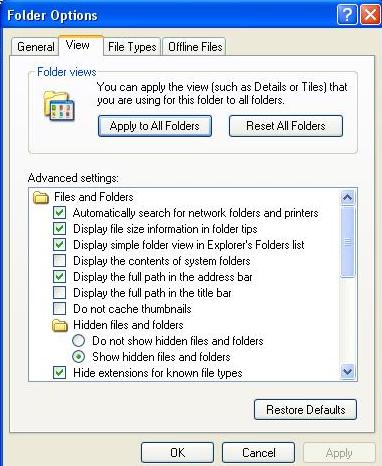
I tried ‘Show Hidden files’ option in ‘Folder Options’ but No use


I did some research and came to know that these files are hidden by Trojan Viruses within registry values.

This behavior can be changed using Command Prompt. Let’s see how it works.

Open Run (Win+R) and type cmd and press Enter.


A command Prompt will appear, type cd\ and hit enter.. This command will let the command applicable to Root directories and sub folders also.


Not type I: and Enter {Note: Type your driver letter in the place of I. (ex H, G.. etc}


Type dir/ah and Enter. This Command useful to identify the directories effected by the viruses.


Now type attrib –h –s /s /d and hit Enter [attrib –h{space}-s{space}/s{space}/d]

After a few seconds you can see your driver letter again this means the process is completed.


No I got all my data back.


Tip:
     This process is applicable not only for Pen Drive or Flash dives like External Hard Disc, but also applicable for your system drives also.

    After applying this command, some of the strange folders you have never seen may appear but don't worry, they are system related files, just hide them if you don't want or try delete if possible.

How To Increase and Boost Internet Speed – Step By Step Tutorial

Many people search how to increase Internet speed, I’ll share few PC Tips and tricks which will boost internet speed. Learn how to increase download speed.
how to boost internet speed
There are many ways to improve internet speed but I’ll focus on important one’s which have most effect onincreasing internet speed.

Ways To Boost Internet Speed

Method 1: Use Full Internet Bandwidth

In Windows 20% of Internet bandwidth is reserved which is used for windows updates and internal system. This is reserved for windows’s own use. You should disable this and get full internet bandwidth. Cut the windows part of bandwidth and you can boost net speed. There is no need to install any extra software to do this.

Step 1

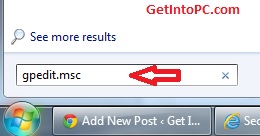
Follow the screenshot and Click on Start button and type gpedit.msc and press enter.
increase internet speed

Step 2

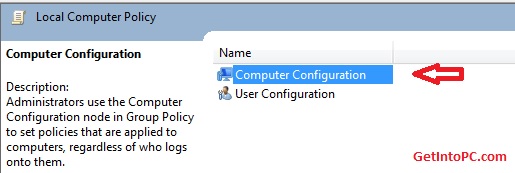
Now double click the Computer Configuration as per screenshot.
boost internet speed

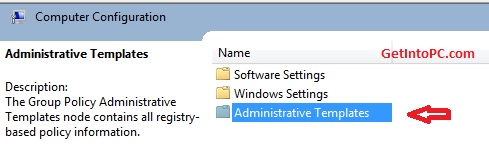
Step 3

Now double click Administrative Templates.
boost net speed

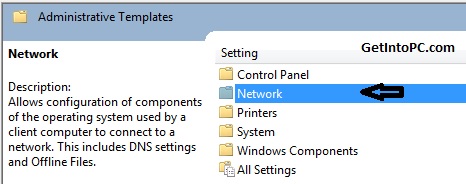
Step 4

Now Double Click Network.
increase net speed

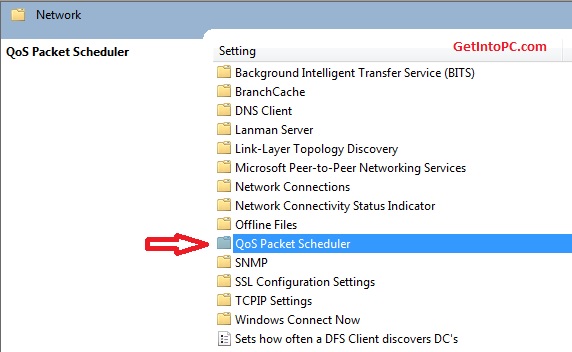
Step 4

Now Double Click QoS Packet Scheduler.
optimize internet speed

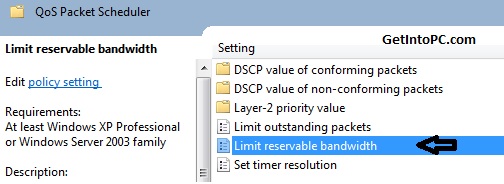
Step 5

Now double click Limit reservable bandwidth.
How to increase internet speed

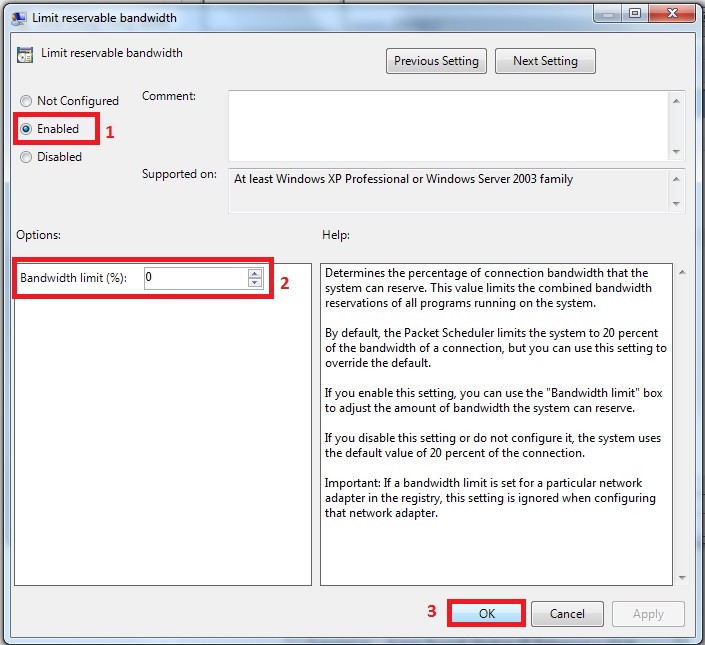
Step 6

First Click on Enabled.
Then change Bandwidth Limit(%) to 0 (zero). As per screenshot.
Then Click OK.

increase and boost internet speed
After click OK button you have now cut the part of windows bandwidth. There is no reserved bandwidth now. You will feel a difference that Internet speed is optimized now.

Method 2: Use Internet Download Manager To Increase download Speed

There are third party softwares also which increase download speed significantly. You can download IDM 6.15 Free to optimize download speed. 6.15 is Latest version version of Internet download manager.

Features of IDM

Pause and Resume Downloads
Boost Download Speed
If Youtube is blocked then you can still download download youtube videos using proxy.

Method 3: Use CCleaner

Sometimes your PC is full of browsing history, cache and cookies. You can download CCleaner free which is best software to remove the garbage from C Drive. CCleaner will ultimately have an effect on Internet speed.

Important Note

Using the above methods will increase internet speed but still the final dependency is on your Internet connection bandwidth. So you should upgrade to a good connection bandwidth plan if you face huge issues even after trying above method.

If you hit any issues while trying above methods to increase internet speed then please feel free to comment here. I’ll be more than happy to assist you.


This Post Was Last Updated On: May 9, 2014 By Author: Fatima Afridi

Unlock your Locked Blogger Blog in 5 easy step ! 2016

For Example your blog URL one.blogspot.com gets locked, First of all don’t panic! Your blog has not been deleted. Instead, you will not be able to post until your blog has been reviewed and cleared by a member of the Blogger team. But when this reviewing process will complete? Follow the steps.
  1. Go to Blogger in Draft, Create a new blog (Yes, you do have access to your blogger account eventhought blog is blocked) and For example the new blog URL istwo.blogspot.com
  2. Now, Go to setting tab of your new blog and from Blog Tools column, Click on Import Blog. Import all your blog posts and comments of one.blogspot.com to two.blogspot.com
  3. Now, Go to Settings of locked one (one.blogspot.com) and under Publishing tab- Give Blog*Spot address as anything except one or two. Let us call it one-new.blogspot.com
  4. Again Go to settings of two.blogspot.om and under Publishing tab, change the Blogspot address to one.blogspot.com
  5. Done, Your Locked blogger blog is now unlocked, You can now post, edit, delete anything you want as a normal blogspot blog.
This happenss because, Blogger systems while blocking a blog takes into account your blog ID not the URL of your blog. Blog ID is a unique number given to all blogs for their identification by Blogger systems. It generally appers while your are on control panel of a Blog. For example – http://blogger.com/blog-options-basic.g?blogID=XXXXXXXXXXXX
Whereas you are interested in Blog URL not its ID, isn’t it? So, getting locked Blogger blog is easy but this post is not for promoting malicious content or spam on Blogs. You should not spam because you are getting free hosted full fledged Blogger hosting for free and it’s great to use it. This tutorial is published to help those innocent bloggers who have been a victim for no purpose. Since, Blogger will not get time to review your blog manually (I think so..) and so, you will have to take this steps.